Product Overview
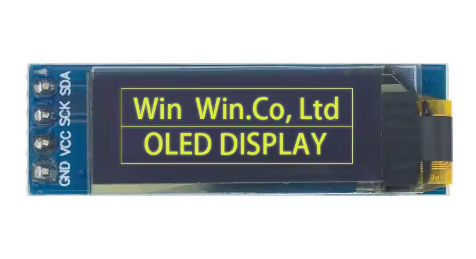
The 0.91-inch I2C OLED Display Module is a compact, high-contrast monochrome graphic display designed for embedded projects requiring crisp visual output without consuming excessive power or I/O pins. Powered by the SSD1306 driver IC and featuring a clear 128×32 pixel resolution, this display delivers bright yellow text, simple graphics, and status icons on a true black background .
OLED (Organic Light Emitting Diode) technology requires no backlight, as each pixel emits its own light. This self-emissive design provides true blacks (inactive pixels are completely off), excellent contrast, and wide viewing angles – ensuring the display remains readable from virtually any angle .
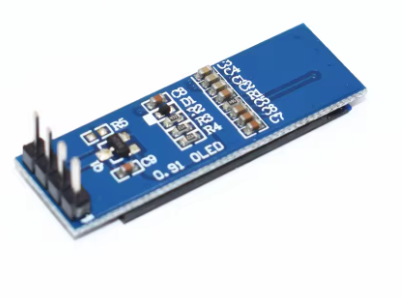
The module uses the ultra-simple 4-pin I2C interface (VCC, GND, SCL, SDA), requiring only two data lines to connect to your microcontroller. This preserves valuable I/O pins for other sensors and peripherals. With support for both 3.3V and 5V logic, it is directly compatible with Arduino, ESP32, ESP8266, Raspberry Pi, STM32, and most other development boards – no level shifters required .
With an ultra-narrow PCB design (approximately 38×12mm), this module is specifically suited for wearable devices, mini consoles, IoT gadgets, and other space-constrained projects .
Key Features
-
0.91-Inch Active Area: 128×32 pixel resolution with a compact 38×12mm PCB – fits easily into tight spaces
-
Yellow Monochrome OLED: Bright yellow pixels on true black background provide excellent contrast and a distinctive, warm visual appearance
-
SSD1306 Driver IC: Industry-standard controller with built-in 128×32-bit SRAM display buffer and on-chip oscillator
-
I2C Interface: 4-pin connection (VCC, GND, SCL, SDA) requires only 2 data lines – saves valuable I/O pins
-
Wide Voltage Compatibility: Operates on DC 3.3V – 5V, compatible with both 5V (Arduino) and 3.3V (ESP32/ESP8266) systems
-
Ultra-Low Power Consumption: 13-26mA typical operating current; unlit pixels draw no power – ideal for battery-powered projects
-
Wide Operating Temperature: Rated for -40°C to +80°C, suitable for industrial and outdoor applications
-
Full Frame Buffer: Only 512 bytes of RAM required (128×32÷8), ideal for memory-constrained microcontrollers
Technical Specifications
Pinout & Connection Guide
The 4-pin I2C interface is extremely simple, making it perfect for beginners and rapid prototyping.
Pin Definitions (4-Pin)
I2C Pin Mapping for Common Development Boards
Wiring Diagram (Arduino Uno)
OLED Module          →    Arduino Uno
─────────────────────────────────────
VCC                  →    5V
GND                  →    GND
SCL                  →    A5 (SCL)
SDA                  →    A4 (SDA)
Note: The module’s built-in voltage regulator accepts both 3.3V and 5V power, so direct connection is safe for both 5V and 3.3V microcontrollers .
Usage Guide
Software Setup (Arduino IDE)
Step 1: Install Required Libraries
You need two libraries – one for the display driver and one for graphics primitives.
Method 1: Adafruit Libraries (Recommended for Beginners)
-
Open Arduino IDE → Sketch → Include Library → Manage Libraries
-
Search for and install:
Method 2: U8g2 Library (More Font Options)
Step 2: Basic Test Sketch (Adafruit Libraries)
#include <Wire.h>
#include <Adafruit_GFX.h>
#include <Adafruit_SSD1306.h>
#define SCREEN_WIDTH 128
#define SCREEN_HEIGHT 32
#define OLED_RESET -1
Adafruit_SSD1306 display(SCREEN_WIDTH, SCREEN_HEIGHT, &Wire, OLED_RESET);
void setup() {
Serial.begin(9600);
if(!display.begin(SSD1306_SWITCHCAPVCC, 0x3C)) {
Serial.println(F("SSD1306 allocation failed"));
for(;;);
}
display.clearDisplay();
display.setTextSize(1);
display.setTextColor(SSD1306_WHITE);
display.setCursor(0, 0);
display.println("0.91 OLED");
display.println("128x32 Ready!");
display.display();
}
void loop() {
}
Step 3: Alternative using U8g2 Library
#include <Arduino.h>
#include <U8g2lib.h>
#include <Wire.h>
U8G2_SSD1306_128X32_NONAME_F_HW_I2C u8g2(U8G2_R0, U8X8_PIN_NONE);
void setup() {
u8g2.begin();
u8g2.setFont(u8g2_font_ncenB08_tr);
}
void loop() {
u8g2.firstPage();
do {
u8g2.drawStr(0, 15, "0.91 OLED");
u8g2.drawStr(0, 30, "128x32 Ready!");
} while ( u8g2.nextPage() );
delay(1000);
}
Raspberry Pi Setup (Python)
-
Enable I2C: sudo raspi-config → Interface Options → I2C → Yes
-
Install required libraries:
sudo apt-get install python3-pip
pip3 install adafruit-circuitpython-ssd1306
-
Python example code:
import board
import busio
import adafruit_ssd1306
i2c = busio.I2C(board.SCL, board.SDA)
oled = adafruit_ssd1306.SSD1306_I2C(128, 32, i2c)
oled.fill(0)
oled.show()
oled.text("0.91 OLED", 0, 0, 1)
oled.text("128x32 Ready!", 0, 15, 1)
oled.show()
Important Usage Tips
-
I2C Pull-up Resistors: The I2C bus requires pull-up resistors (typically 4.7kΩ) on SCL and SDA lines. Most modules include these, but if communication fails, verify their presence .
-
Display Buffer: All drawing functions write to an internal buffer. You must call display.display() to transfer the buffer contents to the actual OLED panel. This double-buffering technique prevents screen flicker .
-
Power Management: For battery-powered projects, only lit pixels consume power. To save energy, use display.ssd1306_command(0xAE) to turn the display OFF when not actively needed, and 0xAF to turn it back ON .
Q: What is the difference between this 0.91" OLED and the 0.96" version?
The 0.91″ display has a resolution of 128×32 pixels, offering 32 vertical pixels (about 2-4 lines of text). The 0.96″ version typically has 128×64 pixels, offering 64 vertical pixels (about 5-8 lines of text). The 0.91″ is ideal for extremely compact projects where every millimeter counts .
Q: What is the default I2C address for this display?
The default I2C address is 0x3C (7-bit address), which corresponds to 0x78 for write operations. If you have trouble detecting the device, run an I2C scanner sketch to confirm the address .
Q: Can I use this display with a 5V Arduino Uno directly?
Yes. The module includes an onboard voltage regulator that accepts both 3.3V and 5V power. Connect VCC to 5V, GND to GND, SCL to A5, and SDA to A4 – no level shifters required .
Q: How many characters can the display show?
With the default 8×8 pixel font, approximately 16 characters × 4 lines = 64 characters total. With larger fonts (e.g., 16×16 pixels), about 8 characters × 2 lines = 16 characters. The display is best suited for sensor readouts, status messages, and simple menus.
Q: Why does my display stay blank after power-up?
Check these common issues:
-
Wrong I2C address – Some modules use 0x3D; run an I2C scanner to verify
-
Wiring – Verify VCC→5V (or 3.3V), GND→GND, SCL→A5, SDA→A4
-
Missing display.display() – Drawing functions write to a buffer; you must call display.display() to push the buffer to the screen
-
Power supply – Ensure your power source can deliver ~30mA
-
Library initialization – Confirm you’re using the correct display resolution (128×32)
Q: Can I use this display with ESP32 or ESP8266?
Yes. Both ESP32 and ESP8266 use 3.3V logic, which matches the display’s requirements. Connect VCC to 3.3V, GND to GND, and SCL/SDA to the appropriate I2C pins. The same Adafruit and U8g2 libraries work on these platforms.
Q: Is the 0.91" OLED readable in direct sunlight?
OLEDs have excellent contrast, making them more readable than traditional LCDs in bright conditions. However, like all emissive displays, direct bright sunlight may reduce perceived contrast. The yellow color provides good visibility .
Q: How much current does the display draw?
According to manufacturer specifications, typical current consumption is 13mA at 3V and up to 26mA maximum. When all pixels are off, consumption drops significantly. This makes it excellent for battery-powered projects .
Q: What is the lifespan of the OLED display?
Rated lifespan is approximately 20,000-30,000 hours of continuous operation (about 2.5-3.5 years). Avoid displaying static images for extremely long periods to prevent uneven pixel wear (“burn-in”). For typical intermittent hobbyist use, this is not a concern.
Q: Can I display Chinese characters or custom fonts?
Yes. Tools like LCD Image Converter can convert text into bitmap data arrays. The U8g2 library supports UTF-8 encoding and includes various fonts. Enable with u8g2.enableUTF8Print() and use the appropriate font .
Q: Can I use this display with Raspberry Pi?
Yes. Enable I2C via raspi-config, then connect VCC to 3.3V (Pin 1), GND to GND, SCL to GPIO3 (Pin 5), and SDA to GPIO2 (Pin 3). Use Python libraries like adafruit-circuitpython-ssd1306 or luma.oled .
Q: What is the memory requirement for the display buffer?
The full framebuffer is 128×32 bits = 512 bytes of RAM. This is significantly smaller than 128×64 displays (1024 bytes), making this module ideal for memory-constrained microcontrollers like ATmega328P (Arduino Uno) .